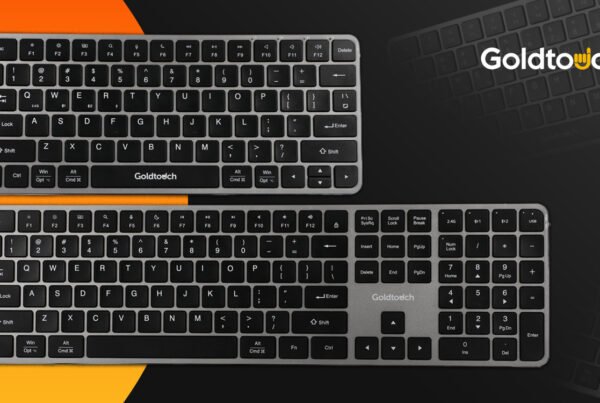
Elite Keyboard PC & Mac, Default or Alternate Layout
In the dynamic world of computer peripherals, ergonomic solutions play a pivotal role in enhancing user comfort and productivity. Goldtouch, a leading name in this space, offers the Goldtouch Elite Keyboard—an innovative device that caters to PC and Mac users.
In this article, we’ll delve into the distinct features of the Goldtouch Elite Keyboard, exploring the differences between PC and Mac modes and the Default and Alternate Layout options.


PC & Mac Features
One of the standout features of the Goldtouch Elite Keyboard is its adaptability to both PC and Mac operating systems.
The convenience lies in a switch discreetly placed on the keyboard’s back, allowing users to toggle between PC and Mac modes seamlessly. Let’s explore the functionalities method mode.
PC Mode
When the Goldtouch Elite Keyboard is set to PC mode, it unleashes a spectrum of functionalities meticulously tailored for Windows users.
The key to this seamless integration lies in the FN key, which, when engaged, allows users to access the F1-F12 keys without the need to hold down the FN key separately.
This streamlined approach enhances user experience, promoting efficiency and ease of use. The Windows-specific functions assigned to these keys are strategically designed to cater to various needs.
The F1 key provides quick access to email, while F2 activates the calculator function.
F3 takes users to the home screen, F4 initiates a Windows search, and F5 activates the snip tool. Moving on, F6 opens “My Computer,” F7 triggers the rewind function, F8 handles play/pause, F9 facilitates fast forward, and F10 controls mute.
The volume control functions are distributed across F11 (Volume Down) and F12 (Volume Up).
Mac Mode
Switching to Mac mode is a breeze, and with the FN key engaged, Mac users can unlock a host of functions tailored to their operating system.
Identifying these Mac-specific functions is intuitive – keys with yellow icons or, on F1-F12, the yellow keys on the front-facing part of the key are designated for Mac functions.
These Mac-specific functions include brightness control (F1 and F2), dashboard access (F3), spotlight activation (F4), and media control features like rewind (F7), play/pause (F8), fast forward (F9), mute (F10), and volume control (F11 and F12). Notably, keys F7-F12 maintain consistent functions for both Windows and Mac users.
Power Button Mac Mode
In Mac Mode, the Power Button prompts the user for shutdown as shown below. The Keyboard will not immediately shutdown the computer in the event the user accidentally hit the Power key.

Eject Button Mac Mode
Historically the Eject Button was used to eject physical media from an Optical Drive/CD/DVD player. Fast forward to present day with most media available online, physical media devices used less, the Eject Key can also be used to eject selected devices or network shares/connected servers on your Mac. To do this, you can Shift+Click all the drives on your desktop and hit the Eject key on the Elite Keyboard; alternatively, highlighting Network Shares and hitting the Eject key will also work.
Additionally macOS has its own set of keyboard shortcuts that take advantage of the eject key and are enabled out of the box. Here’s a quick look at what you can do without any additional software:
- Control+Eject presents a dialog box, giving you the option to put your Mac to sleep, restart it, or turn it off.
- Command+Option+Eject puts your Mac to sleep.
- Control+Command+Eject restarts your Mac.
- Control+Option+Command+Eject turns your Mac off.
- Control+Shift+Eject puts your display to sleep but keeps your Mac awake.
Default and Alternate Layout
The Goldtouch Elite Keyboard goes a step further in customization by offering both Default and Alternate Layouts, catering to users with varied preferences. The switch on the back of the keyboard facilitates easy switching between these layouts, affecting the placement of specific keys.
Default Layout
In the Default Layout, keys such as Print Screen, Pause Break, Delete, Back Space, Home, End, Page Up, and Page Down are strategically arranged. Notably, Print Screen, Pause Break, Delete, and Back Space are on the left side, while Home, End, Page Up, and Page Down are on the right side of the keyboard.
The Alternate Layout
The Alternate Layout comes into play for users desiring a different key arrangement. By toggling the switch on the back of the keyboard, the four key groups switch sides. In this configuration, Home, End, Page Up, and Page Down are on the left side, while Print Screen, Pause Break, Copy, and Paste are on the right. Note: The Elite Keyboard comes with two extra keys located in the keyboard product box under the cardboard flap, they are Copy & Paste. These keys are utilized in Alternate Layout mode, not in Default Layout mode.
An interesting note regarding functionality is that the Print Screen button serves a dual purpose in Mac mode. It brings up crosshairs, mimicking the Command + Shift + 4 function, allowing users to capture a screenshot and save it to the desktop.
In PC mode, the Print Screen button activates the Snip Tool, providing options for Freestyle, Windows, Rectangular Capture, and Full Screen captures.
Final Words
The Goldtouch Elite Keyboard excels in the ergonomic accessories market with its versatility for both PC and Mac systems, alongside customizable Default and Alternate Layouts.
Goldtouch’s dedication to ergonomic solutions is evident in the Elite Keyboard’s design, catering to industry beginners seeking health, safety, creativity, and productivity. Explore the detailed features on the official Goldtouch website.
Embrace ergonomic excellence and elevate your workspace with Goldtouch’s products designed for your unique needs.